
How to Use the PA Table
Overview
The PA Table is your central view for all prior authorizations submitted by your practice. From here you can search, filter, and navigate to individual authorizations to check their status or review responses.
Step 1: Navigate to the PA Table
- Click PA Table in the left-hand navigation to open your practice's authorization list.
Example View
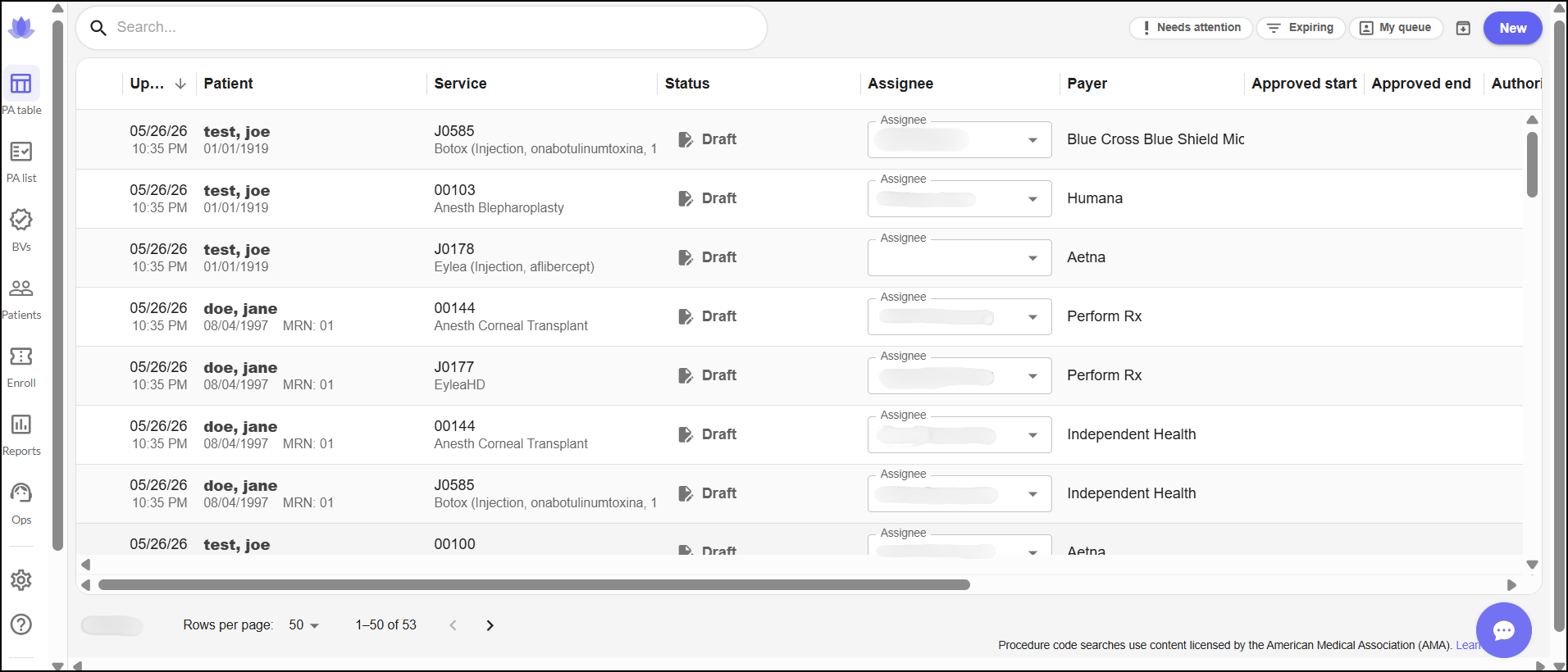
Each row in the PA Table represents a single authorization. The following columns are displayed:
Date Created — when the authorization was submitted
Last Updated — the most recent activity on the authorization
Patient Name
Service Code
Status
Assignee
Payer
Requesting Provider
Servicing Location
Date Submitted
Approved Start / End Dates
Requested Start / End Dates
Status Icons
Two icons may appear alongside an authorization:
 A Response has been received/attached to the authorization
 There has not been an update on this authorization within the last 5 days.
Step 2: Search For an Authorization
- Use the search box to quickly locate a specific authorization. You can search by any of the following:
- Auth ID
- Patient Name
- Drug Name
- Drug Code
- MRN
Example View

Tip: Searching by Auth ID is the fastest way to pull up a specific authorization if you already have the ID on hand.
Step 3: Filter Your Authorizations
- Use the filter buttons at the top of the table to narrow your view. Each filter is described below:
- Needs Attention — shows authorizations in Action Required status, or those that have been in Sent status for longer than the expected follow-up window
- Expiring — shows authorizations approaching their end date so you can submit a renewal
- My Queue — shows only authorizations assigned to you
- Archive — shows archived authorizations
Example View

Step 4: Open and Review and Authorization
- Once you've found the authorization you're looking for, use the following options to act on it:
- Click View on the left side of the row to open the authorization.
- If a response has been received, a Review Response option will also appear — click it to view the attached response.
- If an authorization is in draft status, an Edit but will show
We're here to guide you through your prior authorization quest!

Step 1: Access the template list view
- Explain the relevant actions to be performed
Step 2: Populate the content in the template
- Explain the actions under this step
Step 3: Use the template in your article
- Explain the actions under this step
Use the callout cards to highlight anything important about any of the steps mentioned above
Add a video to help users understand the steps visually
Was this article helpful?
That’s Great!
Thank you for your feedback
Sorry! We couldn't be helpful
Thank you for your feedback
Feedback sent
We appreciate your effort and will try to fix the article